How to Use Claude: Connectors and Integrations That Matter

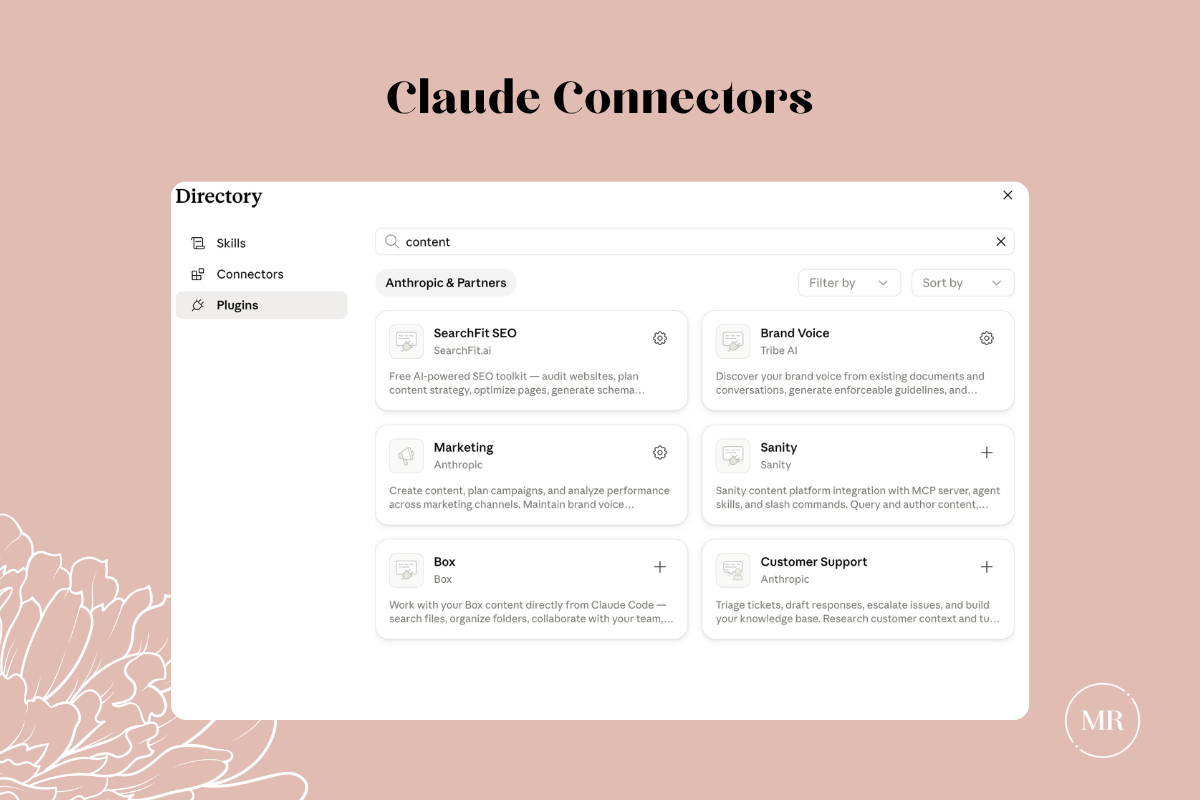
The majority of Claude's documentation is designed for developers, and it's not focused on content. But buried in the developer-speak are connectors — integrations that let you pull information from your existing tools directly into Claude — and understanding which ones actually serve content work versus which ones are noise will save you from building a workflow that's more complicated than it needs to be.
The Connectors Directory now has over 200 integrations, and connectors are available on all Claude plans with no additional charge beyond your subscription. That sounds impressive until you realize that the vast majority of them are built for developers, sales teams, and project managers doing work that has nothing to do with creating content. So instead of walking you through all 200, let's focus on the ones that actually matter for content strategists, and then talk about something most connector guides skip entirely — what happens to your data when you start connecting your business tools to an AI platform.
The Connectors Worth Connecting
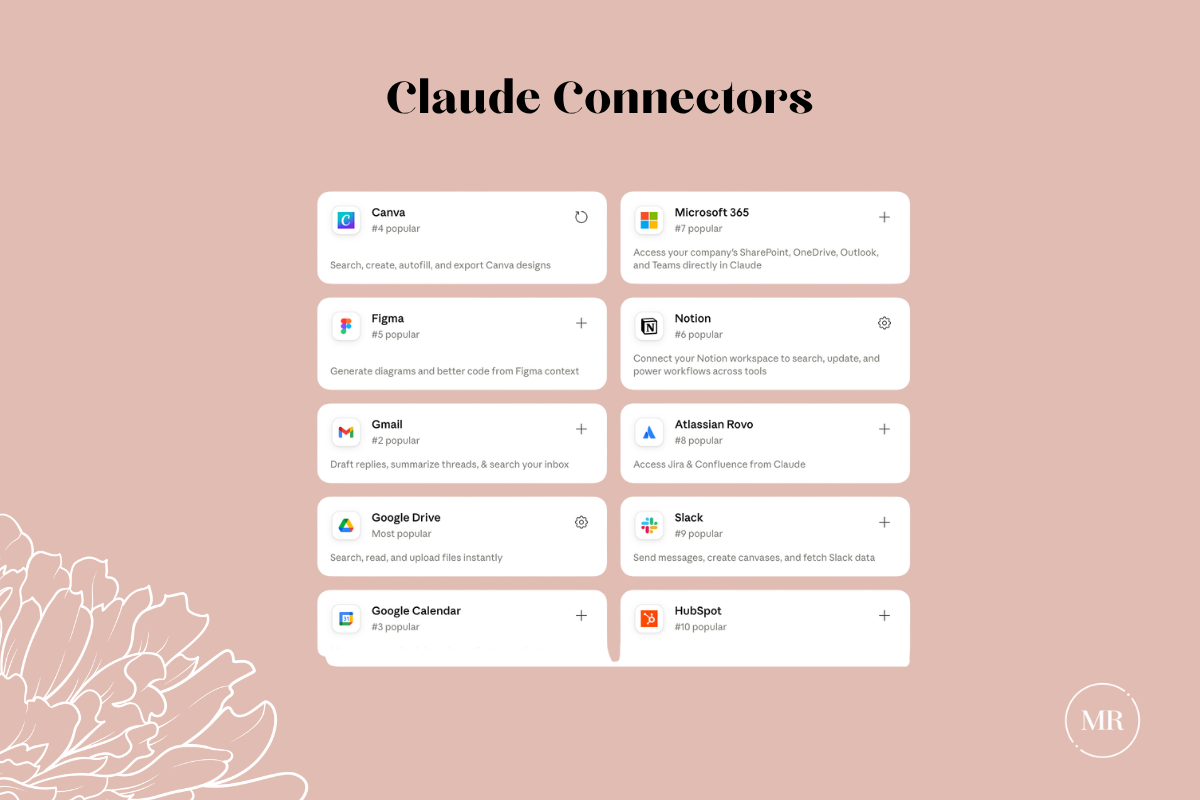
Google Workspace is the one I'd connect first if you're only going to connect one thing, because for most content strategists, this is where your working documents actually live. Claude can search your Google Drive, read your documents, and pull information directly into your conversations — which means your latest positioning doc, your updated messaging framework, the audience research your team finished last quarter, all of it becomes accessible without you ever leaving Claude to go find it, download it, and upload it.
The reason this connector matters beyond just saving you a few clicks is that your strategic documents evolve — your positioning sharpens over time, your audience understanding deepens, your competitive landscape shifts every quarter. When Claude accesses those documents through the connector, it's always working from whatever the current version is, rather than the version you uploaded to your Project three months ago and forgot to update. That said, this doesn't replace the documents you uploaded directly to your Project in Chapter 2 — those are your Project's permanent knowledge base. The connector bridges the gap between what's permanently in your Project and what's living, breathing, and changing in your Drive.
Notion is worth connecting if your content strategy lives there, and for a lot of content teams, Notion is exactly where the editorial calendar, the content briefs, the research databases, and the strategic planning all happen. Connecting it means Claude can reference your content plans, check what topics you've already covered, pull research notes into a writing conversation, and generally operate with awareness of your editorial context rather than creating content in a vacuum.
If you don't use Notion, this is completely irrelevant to you and you should ignore it. But if Notion is where your content brain lives, the gap between planning and creation collapses once Claude can see both sides.
Canva exists as a connector, and in theory it lets Claude create designs using your brand kit — your colors, your fonts, your logos. I'm mentioning it because it was in the first version of this guide and it would be dishonest to pretend I still recommend it with a straight face. The reality is that the integration is clunky, the results are inconsistent, and you'll spend as much time fixing what Claude produces as you would have just opening Canva and doing it yourself. Keep an eye on it because when it actually works reliably, it will be genuinely useful for content marketers who handle their own visual assets. It's just not there yet.
What Happens to Your Data When You Connect Things
This is the part that matters and the part most people skip, so let's not do that.
When you authorize a connector, you're creating a bridge between your business tools and Claude's platform. Claude can then access, read, and process information from those tools during your conversations. That's the whole point — but it also means you need to understand what's actually happening with that data, because "Claude can see my stuff" and "I understand how Claude handles my stuff" are two very different statements.
Here's how the data flow actually works. Anthropic stores encrypted OAuth tokens — the credentials that let Claude access your connected tools — but according to their documentation, they do not store the actual data your connectors return. When Claude pulls a document from your Drive during a conversation, it processes that information within the conversation context, but it's not copying your files into a permanent database somewhere.
However, the conversation itself is stored. Your conversations on Claude are retained for 30 days by default. If you've opted into allowing your data to be used for model training — which is not the default, you have to actively choose it — that retention extends to up to 5 years. The content you discuss, including anything Claude pulled from connected tools during that conversation, lives within that retention window. You can check and change your training data preference in Settings > Privacy.
Memory adds another layer. If you have memory enabled (Chapter 1), Claude synthesizes key facts from your conversations every 24 hours and carries that context forward into future conversations. That means if Claude pulled client-specific information from your Drive during a conversation, elements of that discussion could end up in your memory synthesis. You can view and edit what Claude remembers in Settings > Capabilities > View and edit memory, and you can delete specific entries or reset memory entirely if needed.
What this means for client data and confidential information. If you're a content strategist working with client data — brand guidelines that belong to someone else, proprietary research, competitive intelligence, anything covered by an NDA or confidentiality agreement — you need to think carefully about whether connecting the tools that contain that information to Claude is appropriate. The data isn't being sold or shared with other users, but it is being processed by an AI platform, it is being retained for a period of time, and if you opted into training, it could inform future model development.
What to do about it.
Create dedicated folders in Google Drive specifically for Claude-accessible content, and give Claude access to those folders rather than your entire Drive. Your client contracts, financial documents, and internal strategy decks don't need to be in Claude's reach for it to help you write better content.
Check your training data settings in Settings > Privacy and make sure they reflect what you're comfortable with, especially if you're handling client work.
If you work in a regulated industry or handle data with confidentiality obligations — legal, healthcare, financial services — have a conversation with your legal team about what's appropriate to connect before you connect anything. This isn't about being paranoid, it's about being professional.
Use incognito chats when you're working with sensitive material you don't want retained in your conversation history or feeding into Claude's memory. Incognito conversations aren't saved to your chat history and Claude won't remember them — though if you're on an Enterprise or Team plan, be aware that incognito chats are still included in admin data exports.
Review your connected integrations periodically and revoke access to anything you're no longer using. The access you granted six months ago might not make sense anymore given how your work has changed.
Quick Setup Process
- Go to Settings > Connectors in Claude
- Click "Add Connectors" and select your connector
- Authorize access to specific folders or workspaces — not everything, just what Claude actually needs for content work
- Test by asking Claude to reference a specific document
- Adjust permissions based on what's actually useful
And honestly, that's it. The connector setup is the easiest part of this whole process — it's understanding what you're connecting and why that takes the real thinking. Start with Google Workspace if your documents live there, add Notion if that's where your editorial brain operates, and design the rest of your workflow based on how you actually work rather than how any guide tells you to work. The tools are here. How you use them is yours to figure out.
Written by
What's Next?
How To Use Claude: Setting Up Projects
In the first post in this series, you learned what Claude is, where it lives, and which model to reach for. It was a simple post, but every foundation needs a blueprint, a map of sorts. But here's the thing about maps — handing someone a map to Wonderland doesn't mean they won't walk straight into the wrong door the moment they arrive. And when it comes to creating content with Claude, most content marketers do exactly that. They've got the tool, they open it up, and they start prompting into
How To Use Claude: Setting Up Projects
In the first post in this series, you learned what Claude is, where it lives, and which model to reach for. It was a simple post, but every foundation needs a blueprint, a map of sorts. But here's the thing about maps — handing someone a map to Wonderland doesn't mean they won't walk straight into the wrong door the moment they arrive. And when it comes to creating content with Claude, most content marketers do exactly that. They've got the tool, they open it up, and they start prompting into